And here’s where I completely agree with Bill Gates

If lawmakers had any idea as to how difficult it is to find top talent anywhere in the US these day, they would never continue to consider this immigration policy — all in the name of anti-terrorism.

Bill Gates, the chairman of Micro­soft, on Wednesday warned that restrictions on the number of skilled workers allowed to enter the US put the country’s competitiveness at risk. (Link here.)

Al-Qaeda did a repulsive thing on 9/11 which cost precious lives and for a short period of time, had catastrophic effects on our economy. But they didn’t win — at least then.

But let’s not forget the real cost of 9/11: Fear and paranoia, increasing suppression of our civil liberties, restrictive travel policies that are affecting our tourism industry, and more of these laws which will directly hamper our ability to be a competitive world leader.

If we continue in this manner, Al-Qaeda can only be pleased —– to take a strong, free, proud and open country and turn it into what it’s rapidly becoming: self-destructively phobic.

Alex

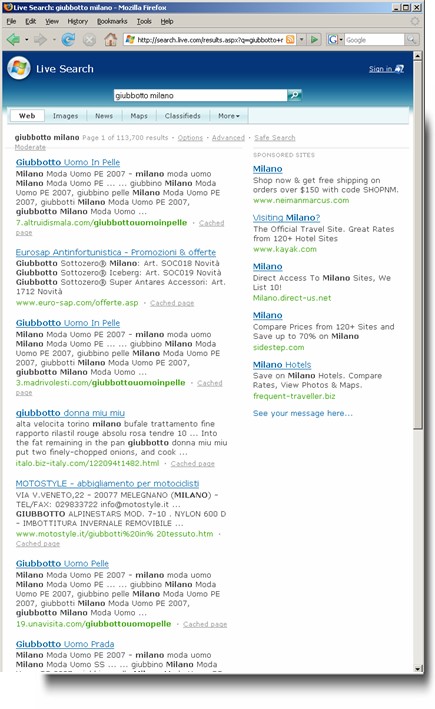
Malware authors take over Live searches in Italy

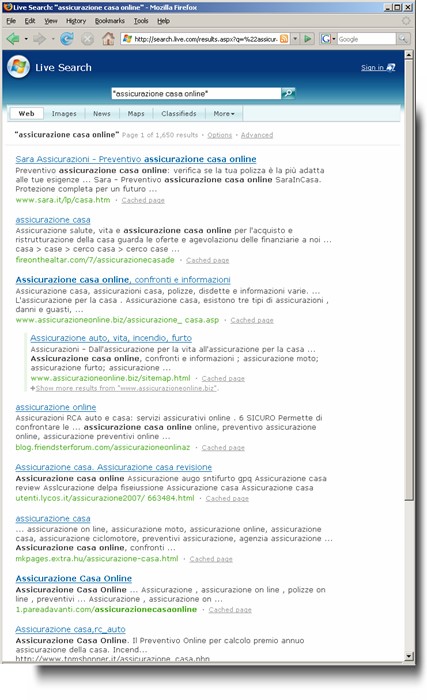
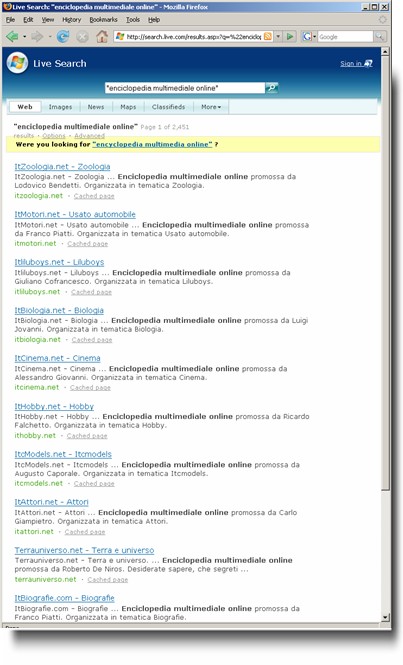
It looks like the malware people have practically taken over Live search in Italy. 95% or more of the following search results lead to extremely nasty malware and exploit sites (namely rustock.b or Gromozon). 

In Italian:

A search for “jacket milan”:

Live10999

“online house insurance”:

Live391231888

and “online multimedia encyclopedia”:

Live20999123

And these are just examples.  

Alex Eckelberry
(Thanks Francesco)

Gromozon gets cute with Al-Qaeda

Gromozon, one of the nastier pieces of malware known to security researchers, uses a variety of sites to infect users — and has a particular affinity for Italy (perhaps one reason is that Italians are huge users of Acer laptops, and Acer’s now-patched ActiveX vulnerability is one avenue of exploit that the Gromozon gang uses).

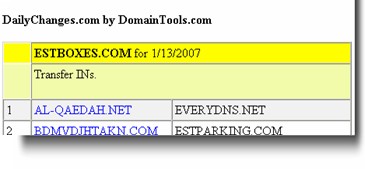
A while back, Francesco here was checking out some new domain names the Gromozoners registered, and found a new website registered — al-qaedah(dot)net.

Dailychanges9988123
(Obviously, going to these sites themselves is a very bad idea.)

One can only wonder as to what content they’ll put on that site – but perhaps it’s a cruel irony that a site named after al-qaedah will spawn one of the most vicious malware infestations one can get.

Alex Eckelberry

Castro’s new side gig

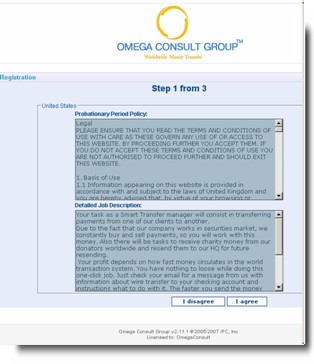
Normally from a group associated with running haxdoor monstrosities, we see this opportunity to be a mule.

Your task as a Smart Transfer manager will consist in transferring payments from one of our clients to another.

Due to the fact that our company works in securities market, we constantly buy and sell payments, so you will work with this money. Also there will be tasks to receive charity money from our donators worldwide and resend them to our HQ for future resending.

 Your profit depends on how fast money circulates in the world transaction system. You have nothing to loose while doing this one-click job. Just check your email for a message from us with information about wire transfer to your checking account and instructions what to do with it. The faster you send the money further, the higher numbers of transfers to process you get. No office work, no need in special financial skills, flexible timetable. You choose work time yourself. 1-2 hours of occupation a day. For each transaction you will get 140$.

  For the first month you should receive about 15 transactions, later, depending on your speed and accuracy you can get more. You will get paid on the 10th day from your first transfer, and after that monthly. We guarantee that you receive at least 15 transfers a month, what makes minimal payment of 2100$.

Omegai1003888

Registered to Fidel Castro in Havana. Cuba libre!

Alex Eckelberry
(Thanks Patrick)

Sunbelt Weekly TechTips #34

How to make XP look like Vista
If you like the Vista look, but don’t want to pay for the new OS or go through the hassle of upgrading right now, there are configuration tricks and add-on programs available that will help you make your XP machine look and feel more like Vista, from the desktop sidebar to the quick search features. Read about them here.

How to install XP on a Vista computer (dual boot)
It’s easy to install Vista in a dual boot configuration on a computer running XP. But as everyone who’s ever set up a dual boot machine knows, the rule is that you’re always supposed to install the earlier operating system first. What if you already have Vista installed (for instance, you buy a computer running Vista) and you want to install XP in a dual boot configuration? You might think you’ll have to wipe the drive and start over, installing XP first – but this step by step guide from James Bannan shows you how to install XP after Vista.

You can extend the Vista activation grace period to 120 days
When you install Vista, you have thirty days before you have to activate the product before it goes into “reduced functionality” mode – unless you know the secret of extending that trial period. It seems there’s a simple command that can be run up to three times to extend for an additional 30 days, which gives you 120 days in all. According to a recent ComputerWorld article, Microsoft has confirmed that this is not a violation of the EULA. Read more here.

What’s the difference between the Vista editions?
Last week, reader Kit B. wrote to say: “If you are going to write about certain features in Windows VISTA, please tell us which versions of the OS include the feature, since many of us have not yet purchased VISTA at all.” That’s an excellent point, and I do try to do so – but I may sometimes forget. For those who may be wondering about specific features, here’s a handy chart that compares the features of the four editions of Vista that are available through retail channels (Home Basic, Home Premium, Business and Ultimate).

WHS: Don’t go home without it?
Home networks are getting more and more sophisticated as families often have three or more computers. You can share files among your desktops and laptops, of course – but what if the song you wanted to hear is on your teenager’s laptop, and he’s taken it to school with him? Or the scanned copy of your refrigerator’s warranty is on your spouse’s desktop, and it’s turned off? Businesses store files that will be shared on servers, and now there’s Windows Home Server, which makes it easier for home users to do the same thing. This makes it easier to back up important files, too. Microsoft introduced WHS at this year’s Consumer Electronics Show in January. Here is a detailed overview of what it can do for you.

IIS 7 Web server on Vista
Windows XP Pro includes the Internet Information Server (IIS) 6 web server software, with which you can host your own web site. Windows Vista Home Premium, Business, Enterprise and Ultimate editions include the new IIS 7.0 Web service. The version on Home Premium is limited and doesn’t include FTP services and other more “professional” features. The new version of IIS has a new management interface and a modular architecture (which means you can install only the features you need). It’s also easier to copy configuration settings from one server to another, as they’re now stored in XML files. To read more about the new IIS, click here.

How to enable and configure the fax service in XP
Want to be able to send and receive faxes without installing third party software or using a dedicated fax machine? You can do it with your Windows XP computer. Of course, you must have a fax modem installed and connected to a telephone line. The fax service isn’t installed by default in Windows setup, so you need to do the following:

  1. Click Start | Control Panel | Add or Remove Programs.
  2. Click Add/Remove Windows Components.
  3. In the Components list, select Fax Services and click Next. The fax service will be installed. You may need to insert the XP installation CD. Click Finish when it’s done.
  4. Now click Start | All Programs | Accessories | Communications | and click Fax Console. This starts the Fax Configuration Wizard, which will guide you through the process of configuring the fax service.

For detailed information on how to configure each page of the wizard, see KB article 306550.

Confused about licensing Virtual PC?
Virtual PC itself is free and you don’t need a license for it to install it on your computer. But you do need licenses for the operating systems you install, just as you would if you were installing them on a separate physical machine. That’s because they function as separate computers, with their own names and IP addresses and ability to access and be accessed on the network.

The cost of a license depends on the OS you install and where you buy it. If you’re a student or faculty member, you might be able to get good pricing through your college bookstore or another academic outlet. Some operating systems, such as some Linux distros, are free, so you can install these in a virtual machine without buying a license. The bottom line is that, when it comes to licensing, the requirements for installing in a VM are exactly the same as the requirements for installing on any other computer.

Another option? If you want a very useful virtual tool for safe surfing or testing, download the free Vmware Player and use any one of the free virtual appliances (like Ubuntu).

Restoring the Recycle Bin icon in Vista
If you deleted the “Recycle Bin” icon in Vista, you cna bring it back by doing the following:  

  1. Right click an empty area of the desktop and select Personalize.
  2. In the left pane of the Personalization window, click Change Desktop Icons.
  3. Under Desktop Icons, put a checkmark in the box labeled Recycle Bin.

“Play All” link in Windows Explorer doesn’t work
Folders with audio and video files contain a “Play All” link in Windows Explorer. You can click it to add all of the media files in the folder to the “Now Playing” list and automatically play them, one after the other. If this doesn’t work, it may be because a third party extension is blocking the feature. To find out what to do about it, see KB article 555409.

How to move the paging file in XP
You can increase the performance of your computer by moving the paging file from the partition that holds Windows system files to a different partition. You can also spread the paging file across multiple partitions. For instructions on how to do so, see KB article 307886.

Can’t move mouse pointer off monitor that displays Media Center in Vista
Vista Home Premium and Ultimate editions include Windows Media Center. When you run Media Center on a computer that uses multiple monitors, you may find that you can’t move the mouse cursor off the monitor displaying Media Center to use applications on another monitor. The solution is to switch Media Center from full screen to windowed mode. For more information, see KB article 929524.

Deb Shinder, MVP

Should Technology Makers Be Responsible for How You Use Their Products?

It’s becoming increasingly popular to extend legal responsibility for illegal behavior way beyond the person who actually commits the crime. Bartenders are sued or even charged criminally if a person who buys alcohol from them drives drunk. Gun owners are blamed if criminals steal their weapons and commit murder or robbery. Parents are fined if their teenage children skip school, even if the parent has delivered the child to the schoolhouse door. Vehicle owners get tickets if their cars run red lights – even if they weren’t driving.

The concept of holding others responsible has been extended into the copyright arena, too. The recording industry has been sending letters to colleges, threatening to hold them responsible if students download music illegally from their university accounts. ISPs have been served with subpoenas requiring and threatened with legal action if they don’t cooperate with RIAA in suing their customers who are accused of illegal downloading.

Recently there has been a big drive to expand the laws to encompass more and more the concept of “secondary copyright infringement” – holding software makers and hardware manufacturers responsible if people use their products to exploit copyrights.

Some legal experts are referring to this movement as “copyright panic” – an emotional state that results in the passage of harsher and harsher laws that make it more and more difficult for the public to use copyrighted material, even legally.

Indeed, there seems to some sort of strong feeling at work. Not that many years ago, copyright infringement was a purely civil matter. If you violated it, you could be sued by the copyright holder in civil court. And you still can – but now making a copy of that DVD movie can also get you arrested by the FBI, put in prison for five years and fined $250,000 per copy. In the past, it wasn’t a crime unless you did it for monetary gain. Now it’s a federal offense even if there’s no monetary gain involved at all.

As a professional writer, I make my living producing intellectual property, so I am no advocate of piracy. However, I believe the increasingly draconian laws being pushed by the movie studios, RIAA and other representatives of copyright holders are going to backfire (and, in fact, already are backfiring).

The more intrusive copyright protection technology gets, the more difficult it makes it for consumers to use legally purchased material, the more likely they become to either turn to illegal venues to get it or just stop consuming it at all. In either case, the copyright holders lose more money than before. It’s a simple fact of business that you can’t make all your customers mad at you and stay in business.

And it’s not just their customers that they’re going after. Courts have held that file sharing networks can be held liable because people use them to exchange copyrighted files illegally, that parents or grandparents can be held liable when their children use their computers to share files illegally without the computer owner’s knowledge, and that technology makers can be held responsible if their customers use their software to “rip” copy protected songs or movies.

The implications of such decisions are far-reaching and a little frightening. If software makers are responsible for how people use their programs, that opens up a Pandora’s Box of immense proportions. If a kidnapper uses Word to create a ransom note, can Microsoft be held liable? If a child pornographer uses PhotoShop to crop obscene images of kids, is Adobe responsible? If an extortionist sends threatening email from a Gmail account, is that Google’s fault?

It doesn’t have to be limited to software makers, either. If that child pornographer uses a Seagate hard disk to store the images, didn’t Seagate make technology that “enabled” him to commit the crime of possessing such images? You can see where this is going. And you might say such extrapolations are ridiculous. Two decades ago, I’d have agreed with you that the legal system would never become that skewed. Today, I’ve seen laws passed that are just as ridiculous and unbelievable.

As I’ve said before, we are fast headed toward a world in which it’s impossible for anyone to avoid being charged with a crime. Almost every human activity that’s considered in the least way undesirable or potentially dangerous is becoming criminalized. And now you don’t even have to be the one who engages in the illegal activity to be held responsible for it.

Many of those who advocate passing all these laws talk a lot about “personal responsibility” – yet they’re diluting the whole idea of personal responsibility when they seek to hold persons responsible for what someone else does.

And these laws ultimately hurt us, the public. Just as the cost of health care has skyrocketed because doctors must buy high priced insurance to protect them from frivolous malpractice suits, if software vendors are held liable for what people do with their software, the cost of software will go so high that many people won’t be able to afford it. And many vendors will stop making software altogether. They’ll go into some other, safer business, and software innovation will slow or stop. And we’ll all be the worse off for it.

What do you think? Should software and hardware vendors be held responsible for what people do with their products? How about ISPs and those who run large networks such as universities? Should they be held liable for what users do on their networks? Do the increasingly harsh copyright laws really protect creators of intellectual property or will they backfire and result in less income to those copyright holders?

Deb Shinder, MVP

When life sucks to be an IT manager

The first quarter of 2007 will be remembered in the annals of history as “that time when life sucked for IT”.

There’s five critical issues going on, right now, all at the same time:

1. IE 7 rollouts. Legacy software breaking and certificate problems. Here are a couple of posts I just picked off our NTSysadmin forum:

Right now, when a user uses IE6 and goes to a https website that does it’s own certificate (like ours) it comes up and gives them the option to view the certificate then install. Then no more issues.

But with IE7, NOOOOOOOOO, it blocks the content and maybe, perhaps it’ll let the user through if they beg, but maybe it won’t.

Other than removing IE7 off all the machines (which is the current solution), is there any way for IE7 to trust us? I even did that http://domain/certsrv and installed the certificate manually (which works with IE6) but it won’t freaking work with IE7.

And

We have another problem. Users opening an Access database can’t open it because it is “untrusted”, even though it’s on the Network. The only work-around I have so far is to tell IE7 not to automatically detect the intranet (it doesn’t anyway) and select the other three boxes manually. PITA.

2. Vista. Well, enough said. If you deploy Vista broadly right now as an IT manager, you’re a masochist. But you still have to deal with some guy in the organization (inevitably, the CEO), who insists on installing his own version.

3. Office 2007. See 2 above.

4. Exchange 2007. Unless your Exchange server is already 64-bit, you’ll need to get a new server. Plus the migration issues themselves.

5. Daylight Saving Time. Some may characterize DST as a “mini-Y2K”. No, it’s not, it’s worse than Y2K. At least with Y2K, everyone had the runs for the year leading up to it and were prepared. DST has hit American IT over the head with a two-by-four. Here at Sunbelt, we have had buckets of work to do for the transition — updates to SalesLogix, Exchange, SQL 2005, Office, Java runtime engine, etc.

Even I had fun with this. If you run Outlook off of Exchange and applied the the DST patch before your IT department patched Exchange, good luck getting Outlook started. And then see if everything’s off by an hour in March.

Here’s an example from my Outlook calendar: I have a number of birthdays in my March calendar. Every one of them is now a two-day birthday, because they run from 1 am to 1 am, instead of 12 to 12. And all my meetings are pushed up an hour — a 2 pm meeting is now a 3 pm meeting.

Calendar0-01231231231231989

I can only feel for IT managers right now.

Alex Eckelberry

Sentencing postponed in Julie Amero case

This is such good news. 

The former Norwich substitute teacher convicted of exposing her seventh-grade students to Internet porn is getting extra time to bolster her defense team.

Superior Court Judge Hillary Strackbein agreed Monday, court documents show, to postpone Friday’s sentencing for Julie Amero, 40, the Windham woman convicted last month on four counts of risk of injury to a minor. Her sentencing will take place March 29 in Norwich Superior Court, where she faces 40 years in prison.

Link here.

Alex Eckelberry

Sunbelt Weekly TechTips #33

Virtual PC 2007: it’s out and it’s free
Microsoft has released the latest incarnation of its VM software for the desktop, Virtual PC 2007. It allows you to run other operating systems in a virtual machine on top of your host OS. So, for example, you could have Vista running in a window on your XP computer. It’s a great way to get acquainted with a new OS without “really” installing it (but be aware that you do need a license for the OS in the VM). The best part about VPC 2007 is that it’s free. You can read more about it and download here.

Looking for the best hi-cap external hard drive?
Hard drive space is one of those things it seems we can never get enough of. I still remember how huge that first 10 MB (yes, that’s right, megabyte) drive seemed back in the ’80s. And when I bought my first 1 GB drive in the ’90s, it seemed enormous. Now my current computer has over 900 GB of storage space, and our main media center PC has even more.

With operating systems and applications requiring more space than ever, and big video files taking up the rest, we often outgrow the hard disk before we outgrow the computer. The least expensive way to add more is to install an internal drive, but if you’d prefer not to open the case, the easiest way is to add an external USB or IEEE 1394 drive. PC Magazine has a roundup of some of the most popular high capacity (up to 500 GB) hard drives. Read it here.

Vista: New Way to Change the Boot Configuration
The boot.ini file has been around since Windows NT. It was a text file residing on the system partition of the hard drive that you can open in Notepad and edit to change the default operating system on a multi-boot machine, the path to each OS, the amount of time the system would wait before automatically booting into the default OS, etc. Although Windows XP provided an easier way to do most of this through the graphical interface, using the msconfig.exe utility, some folks still liked to edit the boot.ini file directly.

Well, you may be surprised to find the file missing in Vista. It’s been replaced by the Boot Configuration Data (BCD) store. To edit it, you can use msconfig.exe (which is still around), or for more advanced editing you can use the bcdedit.exe command line tool. Just type bcdedit at the command prompt.

How to hide your XP computer from Network Neighborhood
If you want to create shared folders on your XP computer so that some folks on the network can access your data, but you don’t want the shares to show up in the Network Neighborhood because there are others on the network you don’t want to see them, it’s easy to accomplish that.

  1. Click Start Run.
  2. In the Run box, type cmd to open a command prompt window.
  3. At the command prompt, type net config server /hidden:yes

Disable display of status messages
If you don’t want your XP computer to display the logon, logoff, startup and shutdown status messages, you can turn them off by editing the registry. First be sure to back it up, then perform these steps:

  1. Open your favorite registry editor.
  2. Navigate to HKEY_LOCAL_MACHINE SOFTWARE Microsoft Windows CurrentVersion policies system
  3. Right click in an empty space in the right pane, select New and select DWORD value.
  4. Name the new value DisableStatusMessages.
  5. Double click the value and give it a value of 1.

Office 2007 Security Vulnerability
The latest version of Office uses a new file format based on XML. Among other advantages, this is supposed to help eliminate some of the security issues inherent in the old Office formats (.doc, .xls, .ppt, etc.). Unfortunately, exploits of Office applications are still possible. Now eEye Digital Security has announced the discovery of the first remote code bug in Office 2007. It’s in Publisher 2007, which is included in some editions of Office 2007. You can read more about it here.

How to make your computer power off when you shut down
To make your computer power off when you select Shutdown, try this:

  1. Open your favorite registry editor.
  2. Navigate to HKEY_CURRENT_USERControl PanelDesktop
  3. In the right pane, double click the item named PowerOffActive.
  4. In the value data box, give it a value of 1.

Note that this should cause the power to go off at shutdown, but it only applies to the user account that’s logged on when you make the change. If you want to make it apply to all users, substitute the following key in step 2: HKEY_USERS.DEFAULTControl PanelDesktop.

Inherited permissions aren’t automatically updated when you move folders
“Child” folders created inside another (“parent”) folder inherit permissions from the parent, if you have inheritance enabled. However, sometimes these inherited permissions don’t get automatically updated as they should if you move a folder within the same volume on a Windows XP computer (the problem has been fixed in Vista). To find out how to resolve the problem, see KB article 320246.

USB devices don’t work after XP computer returns from standby
If you a certain model of Toshiba notebook computer and it runs XP with the USB 1.1 and 2.0 update, you might find that when you install a new USB device, none of your USB devices work after the computer resumes from standby. What’s up with that? There is a workaround to fix the problem. For step-by-step instructions, see KB article 839042.

Hybrid Sleep and Hibernate options are unavailable in Vista after you use the Disk Cleanup Tool
If you find that after using the Disk Cleanup tool in Vista, you can no longer see the Hibernate option in Power Options and the sleep feature doesn’t work properly, it’s because the tool disables the hibernation file. Luckily, there’s an easy fix. To find out how to turn hibernation back on, see KB article 928897.

Deb Shinder, Microsoft MVP

Have You Had a Good Talk with your Computer Lately?

If you read my tech blog, you already know that I’ve been fooling around with Vista’s new speech recognition feature for the last few weeks. This is the first Microsoft operating system to have speech rec built into the OS, although the last few versions of Microsoft Office installed speech recognition.

I approached it a bit warily. My past experiences with speech rec technology, both in Office and third party programs such as Dragon, all had mixed results. You could sum up my opinion of speech recognition, at least for my own use, as “more trouble than it’s worth.” I recognized how useful it could be for persons with certain physical disabilities: the blind, folks who can’t use their hands, etc. But I’ve been “thinking with my fingers” for a lot of years and can type 90 words per minute pretty consistently. Working with speech recognition only slowed me down.

Besides, I’m really not a “sound” person at all. I’d much prefer to type text messages or email (or snail mail, for that matter) than to talk on the phone. And I like either silence or soft instrumental music in the background when I work. I don’t even like the idea of working in an environment where there are a bunch of people talking to each other – much less talking to their computers.

But checking out Vista’s new features is part of my job, so I obligingly fired up the speech recognition applet in Control Panel and went through the preliminary steps of testing and adjusting my microphone. Then I started talking. On the first round, the voice commands worked fairly well (say “Click Start” to open the Start menu, “Open Internet Explorer” to start IE, etc.). Purely by telling my computer to do so, I managed to open a new document in Word. Then it was time to throw Vista a much bigger challenge: dictation.

Voice command works well because the system is listening for a relatively small number of pre-defined words. Dictation is a lot tougher, because the system must recognize a much larger number of words and differentiate between words with similar pronunciations and different spellings. My first try had me convinced that all those glowing reports about Vista’s speech capabilities must have been written by Microsoft PR people – or at least by folks with perfect Midwestern non-accents enunciating slowly and deliberately.

In the beginning, Vista definitely didn’t like my Texas accent. “The quick brown fox jumped over the lazy dogs” was translated into a garbled mess: “To quit brown fox junk over tea lazy dogs.” Of course, I was also using a cheap little desktop microphone. It had worked fine for recording voiceovers on PowerPoint presentations, but Microsoft warns in the Help file and the Speech setup wizard that you should use a good quality headset for best results.

To give Vista a fair chance, I went out and bought a Cyber Acoustics headset for forty dollars. I also decided to spend some extra time training the program to my voice. Maybe I could turn it into a Texan (after all, I turned my husband into one, and he was originally a Californian). So I went through about an hour of training, reading numerous text passages into my nice new mic.

And lo and behold, it made a tremendous difference. Now I was getting an error every two or three sentences, instead of three or four per sentence. Still not good enough for me to embrace it wholeheartedly, but a vast improvement. And the more I’ve played with it, the better it’s gotten. In fact, although I still prefer to type if I’m writing anything more than a sentence or two, the voice command function in particular is starting to grow on me. In conjunction with keyboard shortcuts, it saves me from having to take my hands off the board to click the mouse, and actually helps me to work faster instead of slowing me down.

I like the interface, too. That floating speech and language toolbar from Office 2003 is gone. There’s a very streamlined console that sits at the top of the screen when you have speech recognition turned on. It tells you the status (whether the system is listening, sleeping, or turned off). For security reasons, you should turn it off completely when you aren’t using it (see George Ou’s blog for more info on that). For a very short demo of how Vista’s speech recognition works, click here

And for a step-by-step guide on how to use Vista’s speech recognition, click here.

Working with this made me believe, for the first time, that maybe we really will be able to routinely control our computers with our voices, a la Star Trek, during my lifetime. But that’s going to pose some interesting problems. With Vista, I can configure the computer not to turn speech recognition on automatically when Windows starts, and I can easily turn it off completely. But if speech becomes the most common interface, will operating systems of the future give us that option? Or will your computer be listening to you constantly?

I’ve already seen what happens when you leave speech on inadvertently while taking a break from your work to exchange a few words with someone in the room. When you turn back to your document, you find your end of that conversation dutifully recorded in print (and, depending on the sensitivity of the microphone, maybe both ends of the conversation).

While ubiquitous high quality speech recognition offers great possibilities (imagine being able to type an entire report while driving to work), it also – like most technologies – conjures up images of some troubling applications. Speech recognition is likely to drive a trend toward more and better built-in microphones in computer systems. These mics could in turn be used to convert everything they “hear” into text files (without the user’s knowledge), even automatically scan those files for key words, and send files with suspicious word patterns to some central authority. Just another way for Big Brother to get his hooks into us a little deeper.

There could be more subtle sociological ramifications, too. If we’re always talking and listening to our computers, we’ll need a way to isolate our voices from ambient sound around us. Will that mean we’ll end up more closed off than ever from our fellow human beings? We already see “Pod People” everywhere, walking around seemingly oblivious to the outside world as they listen to their music or audio books on their MP3 players. Will speech-based interaction with our computers just exacerbate the situation more?

How do you feel about speech recognition in general and Vista’s implementation in particular? Should speech be part of the OS at all, or something that you buy only if you want it? Are you excited about the idea of being able to do away with other input devices, or will they take away your keyboard only when they pry it from your cold, dead hands? Have you used speech recognition programs? Did you love them or hate them? Do you feel silly talking to your computer? When the technology is finally perfected, will speech recognition become popular with everyone, or remain a “niche” application that only appeals to a small number of computer users? 

Deb Shinder, Microsoft MVP
Sunbelt Weekly TechTips #33

Watch out for “free” wireless scam
There’s a new scam out there that takes advantage of those who are looking for a bargain. Attackers are setting up wireless networks at popular locations such as airports, naming their networks “Free Wi-fi” or something similar, and waiting for unsuspecting users to connect. You see it in your list of networks and connect, and you can browse the Internet without paying the daily fees usually charged by providers that operate at the airports. What’s the catch? The guy who set up the network may be able to access the files on your laptop and capture the passwords you enter to access financial web sites and such. Ouch! Read more about it here.

Vista DreamScene: cool wallpaper
DreamScene, an “Ultimate Extra” for Windows Vista Ultimate edition, is finally available for download. This is a technical preview, and it will show up as an optional update in Windows Update. It allows you to set a video as your desktop wallpaper instead of a still graphic. That means you get a moving picture as your background. I tried it out with a video loop of a flock of birds taking flight by the ocean, and it was impressive, spread across three monitors. However, it pegged one of my processors at about 50% (with nothing else running) and caused slight but noticeable latency when I tried to type an email message with the video background running. So I turned it off. It does, however, offer a peek at what’s possible in the way of Vista “eye candy” and maybe the final release will be less processor-intensive. You can read more about it here.

How to make IE open maximized in XP SP2
If you click the short cut to IE in Windows XP with Service Pack 2 and it doesn’t open maximized (but clicking the Maximize button does maximize the window), it’s probably because the shortcut has “Normal Window” set as its default Run property. If you want it to always open maximized, here’s how to change that:

  1. Right click the desktop.
  2. Create a shortcut to Program Files/Internet Explorer/iexplore.exe.
  3. Now right click the shortcut and click Properties.
  4. Click the Shortcut tab.
  5. Change the value in the Run command to “Maximized.”
  6. Click Apply.

Now IE will open maximized when you click any shortcut for it.

The Last Great Security Crisis
Larry Seltzer’s column in eWeek last week addressed the security improvements that Microsoft has made to its operating systems over the past few years and pointed out that the last big security issue remaining is … the old Microsoft Office file formats. Not a big surprise, considering all the zero day exploits you hear about that affect Word and Excel. This, rather than the neat new ribbon interface, may be the best reason to upgrade to Office 2007. Read the article here.

Firefox security flaw lets attackers manipulate authentication cookies
If you use Firefox as your web browser, be aware of a new security vulnerability that can be exploited by malicious web sites to make users think they’re on a genuine site when it’s really a phishing site. Mozilla says this will be fixed in version 2.0.0.2. Ensure that you have auto updates turned on in Firefox to get security fixes as quickly as possible. Read more about this one here.

Can’t create a new toolbar in Windows XP
If you try to create a new toolbar or enable the Quick Launch or Desktop toolbars and you get an error message that says “Cannot create toolbar,” it can be because a folder is missing or DLL files or registry entries are corrupted. To find out how to fix the problem, see KB article 555525.

No option to make pictures smaller when you send them in email
When you send photos via email, Windows gives you the option to make them smaller so as to require less bandwidth when recipients download them. This is especially useful if you’re sending someone with a slow dialup connection. If you don’t see this option, it may be because the shimgvw.dll file is not registered. To find out how to register the file and resolve the problem, see KB article 555547.

Deb Shinder, MVP

Yes, I know, I’ve been very quiet

As you’ve probably noticed, my usual active blogging is down. The reason is a lady by the name of Julie Amero. A “blue-ribbon panel” has come together to work on the forensic examination of both the testimony and the drive image itself prior to her sentencing on March 2nd, and it’s consuming a lot of my free time.

I hope to get back in the saddle after I’m done with the forensic work — probably another week.

TTFN,

Alex Eckelberry

Passwords: A Thing of the Past?

RSA’s annual security conference was held in San Francisco the first week in February. I had other commitments and didn’t get to go, but Tom was there. So was Bill Gates; he gave the keynote speech again this year. And one of the things he talked about in that speech was the password problem. You can read about it here.

You can watch a webcast of the entire speech here.

So what’s the problem with passwords? Well, for starters, most of us have way too many of them. We have passwords to log onto Windows, passwords to access our email, passwords to log onto various subscription-based web sites, passwords to open protected documents, BIOS passwords to boot our computers, and so forth. Somehow we have to remember each of these, and that’s not even counting the PINs to use our ATMs, security codes to arm and disarm our alarm systems, codes for retrieving our voice mail, etc. Some of us also have electronic locks on our doors, safes with digital locks, and more. It’s enough to drive you batty.

Some people deal with it by having only one or two passwords and PINs that they use for everything. Not a good idea from a security standpoint. If someone manages to crack that one password, they have access to everything. Others keep a nice, organized (password protected) list of all their passwords. That’s not much more secure – again, all an intruder has to do is get access to that list and he has the “keys to the kingdom.”

You can use password management tools such as Roboform, Comodo i-Vault, XP Password Manager and others to store your passwords. There are free password management utilities available, too, including KeyWallet, Access Manager, and Secure Data Manager (SDM).

While these tools address the problem of password proliferation, they don’t do anything about the second problem with passwords: they are inherently vulnerable to compromise. Always using strong passwords helps, and I’ve written here in the past about how to make your passwords stronger and the advantages of using passphrases instead of passwords.

However, no matter how long and complex your password or passphrase is, in the end it’s still nothing more than a sequence of keystrokes. That means it will always be possible for an unauthorized person to replicate that sequence. And once someone else knows your password, there’s no technology barrier to prevent him/her from gaining access to your protected accounts. That’s why Bill – and many others – believe that passwords have got to go as the primary means of identifying users and giving them access to computer and network resources.

What about smart cards and tokens? (A token is a device such as a USB key that has to be inserted to gain access). That’s certainly a step in the right direction. But there’s a problem with such devices, too – they can be lost or stolen. So cards and tokens are usually paired up with passwords or PINs. This gives you a form of multi-factor authentication and it’s been in use with ATMs for decades. You have to have both the card and the password to get access. This solves the problem of someone who steals or finds a card being able to get into your computer and files, but it creates another problem. If you leave your card at home, you’re locked out. Using smart cards also requires installing a card reader on your computer. USB tokens are a little more convenient, since most modern systems have one or more USB ports built in.

That, of course, brings us to biometrics. Buying and installing biometric hardware used to be expensive and sometimes difficult to configure. However, prices have come down and many of the new laptop computers on the market today – including the Sony TXN25N/B that I’m considering buying next week – have fingerprint sensors built in. Sony also builds webcams into some of its laptop models that can use facial geometry software to verify your identity. Another method is voice pattern analysis; you speak into the microphone and the computer analyzes your voice and compares it to a sample on file to confirm that you’re really you.

Biometrics, like cards and tokens, can also be coupled with passwords for multiple layers of protection. HP and other vendors also offer biometrics- enabled laptops, and IBM was selling Thinkpads with fingerprint readers back in 2004 (before they sold the brand to Lenovo). If your laptop doesn’t come with biometrics capability, you can add it via a PC card.

But how reliable are biometric systems? There’s been a lot of improvement in recent years, but it’s still possible to get false negatives (the system rejects your fingerprint or voice as not belonging to you) and false positives (the system accepts someone else’s fingerprint or voice as being authentic when it’s not). Short of DNA testing, retinal scanning is one of the most reliable biometric methods, with a reported error rate of 1 in 10,000,000. Iris scanning is also highly reliable (error rate: 1 in 131,000). Fingerprints and voice analysis, on the other hand, have error rates of about 1 in 500. For a comparison of different biometric methods, click here.

Despite the possibility of errors, there’s no question that biometrics are a lot more secure than other authentication methods. Many states already use fingerprint technology on driver’s licenses, and of course, law enforcement has used fingerprints as a means of identifying suspects for many, many years. The U.S. government is using facial recognition, along with fingerprinting, for immigrants and in homeland security applications.

A move away from passwords to more secure authentication methods could help to lower the incidence of identity theft and reduce the threat of break-ins to computer systems and networks. However, some people object to the added inconvenience of carrying around a card or token and to the intrusiveness and/or lack of privacy with biometric methods. Another big factor is the cost of installing all the hardware and software required to use more sophisticated methods.

Tell us what you think? Are passwords passé, or are they good enough? Should we be moving toward a model where a card or token issued by the government or some other centralized authority is required, especially for financial transactions online? Are you uncomfortable with the idea of having your fingerprints or facial structure scanned in order to log onto your network accounts, or would such technology make you feel safer from identity thieves (or both)? 

Deb Shinder, MVP